

An HTTPS link that opens your debug app but opens a browser for a store-installed build often points to verification, signing or user-choice differences. Inspecting the intent filter alone is insufficient: the website also needs to establish the appropriate relationship with the installed package and signing certificate.
Diagnose website association, installed-build identity, device verification state and in-app routing as separate layers. Do not redesign the destination screen before establishing whether Android delivers the link to the app.
Separate domain verification from route authorization
Android App Links use a verified relationship between a website and an application. After a URL reaches the app, the product must still validate its path, authentication state and permission to access the destination.
A verified domain does not authorize every referenced object. Treat a content identifier in a URL as input to validate, not proof that the person may read the record.
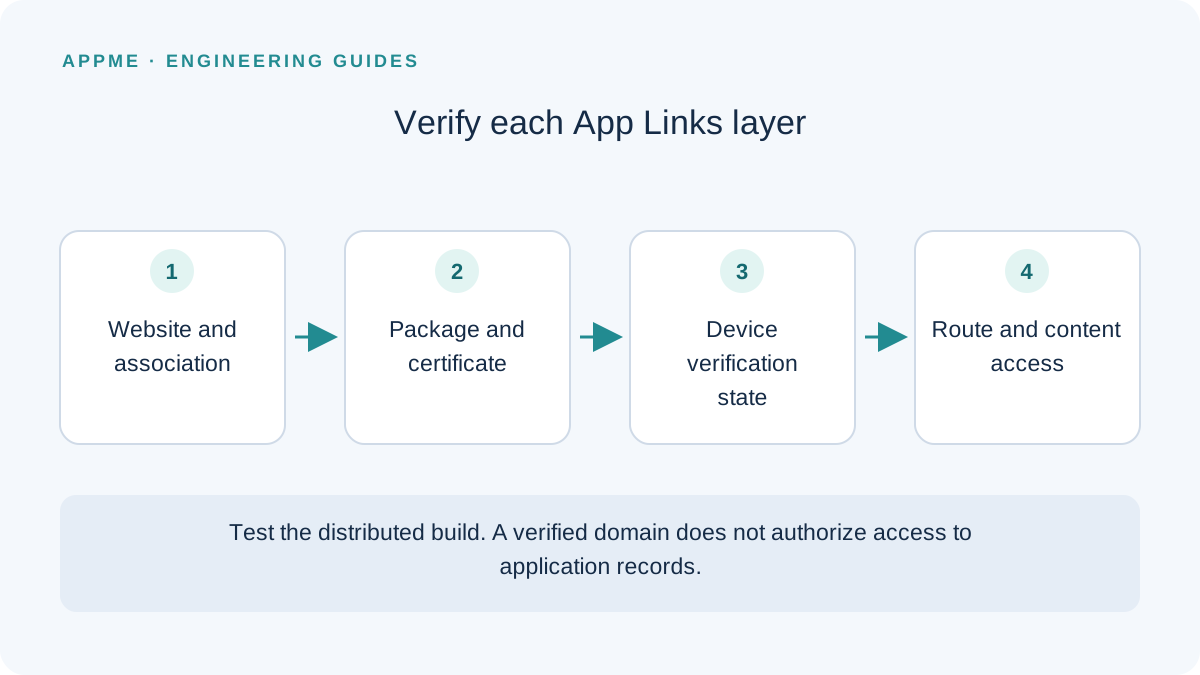
Android provides Digital Asset Links configuration guidance and adb-based verification diagnostics. Use instructions appropriate to the operating-system version under test rather than assuming every older device supports the same command set.
Inspect assetlinks on the exact hostname
Check the publicly served .well-known/assetlinks.json according to Android's current association requirements. Record the HTTP response, content and public availability. A correct file in a repository does not prove that a reverse proxy or deployment serves it correctly.
Inspect each hostname declared by the app. Do not assume one association automatically covers every subdomain. Redirects and edge configuration can make the public result differ from the origin server.
The website does not need your private signing key. Association uses appropriate application identity and certificate fingerprints, not the secret used to sign the application.
Match the certificate to the distributed build
Consider a hypothetical project whose debug build uses a development certificate while its store-distributed build has a different signing identity. Publishing only the debug certificate cannot establish the intended association for a differently signed release.
| Layer | Diagnostic question | Evidence to retain |
|---|---|---|
| Website | Is the expected JSON publicly served? | URL, response status and checked content |
| Package | Does the application ID match this installation? | ID of the exact build being tested |
| Signing | Which certificate signed the distributed app? | Fingerprint from an authoritative build or distribution source |
| Device | What is the domain verification state? | Diagnostic output on the named device |
| Application | How are route and sign-in state handled? | Cold-start and already-running journeys |
Avoid changing several layers at once. For example, adding fingerprints, changing filters and replacing routing code together can hide which difference actually caused the failure.
Observe verification with adb
On Android versions supporting the corresponding commands, request re-verification and inspect the state. This package name is an example and must be replaced with the application ID you are actually testing.
adb shell pm verify-app-links --re-verify io.example.learning
adb shell pm get-app-links io.example.learning
Allow the verification process to run before interpreting its result. Invoking a command does not establish that the network, certificate and association content are valid. Preserve returned states or error information and compare them with Android's documentation.
Test the installed release variant after a configuration change. A development build succeeding is useful evidence about that build, but cannot substitute for the distribution path your users receive.
Follow the link through sign-in and failure states
Once Android delivers the link, try content requiring authentication. Preserve the intended destination through successful sign-in, then perform the normal server authorization check. Sending every person to the home screen is not equivalent to completing the linked task.
Also exercise a nonexistent identifier, deleted content and unexpected parameters. Provide a clear explanation and a useful way back. Do not let the presence of a familiar domain bypass validation of the route or its data.
If verification succeeds but a browser still opens, inspect the user's supported-link preference and installed application variants. Keep domain verification separate from a device's final routing choice.
The release-readiness review provides a broader evidence checklist. For authentication continuity, see account recovery and session boundaries.
Frequently asked questions
Why can a verified domain still open in a browser?
Check device preferences, the exact hostname and path, and competing installed variants. The verified relationship is one part of the routing decision, not a substitute for checking the complete environment.
Should I publish every certificate fingerprint to make testing easier?
Only establish relationships with applications and signing identities you actually intend to authorize. Identify the installed build first rather than expanding association without a clear owner.
Primary sources
Check these original references again before making a release or policy decision.